AI Product Lookup
Give your AI assistant access to your product catalog for accurate, detailed email responses
Updated December 2024
What is Product Lookup?
Product Lookup connects your product catalog to your AI email assistant. When a customer emails asking about a product, the AI automatically searches your Google Sheet or Excel file and includes accurate pricing, stock availability, product descriptions, and direct purchase links in its response — no manual lookup required.
This means faster, more accurate responses that help customers find exactly what they need while reducing your support workload.
 ChatGPT
 Claude
 Gemini
See It In Action
Watch how the AI automatically searches your product spreadsheet and generates personalized email responses with real product data, pricing, and purchase links:
| A | B | C | D | E | F | |
|---|---|---|---|---|---|---|
| 1 | Product Name | Roast | Size | Price | Stock | URL |
| 2 | Ethiopian Yirgacheffe | Light | 250g | $18 | In Stock | morningbrew.com/ethiopian-250 |
| 3 | Colombian Supremo | Medium | 1kg | $45 | In Stock | morningbrew.com/colombian-1kg |
| 4 | House Blend | Medium | 500g | $24 | Low Stock | morningbrew.com/house-500 |
| 5 | Espresso Roast | Dark | 250g | $20 | In Stock | morningbrew.com/espresso-250 |
1Connect Sheet
Go to Settings → Sheet Settings, select your email, and add a Google Sheet or Excel file
2Choose Type
Select "Products" as the sheet type
3Map Columns
Click the settings icon to configure which columns the AI should use
💡 Only map columns that exist in your spreadsheet. Leave others as "Not mapped" if you don't have that data available.
Column Mapping
Configure which columns the AI searches and includes in responses. Click the settings icon on your connected sheet to access these options:
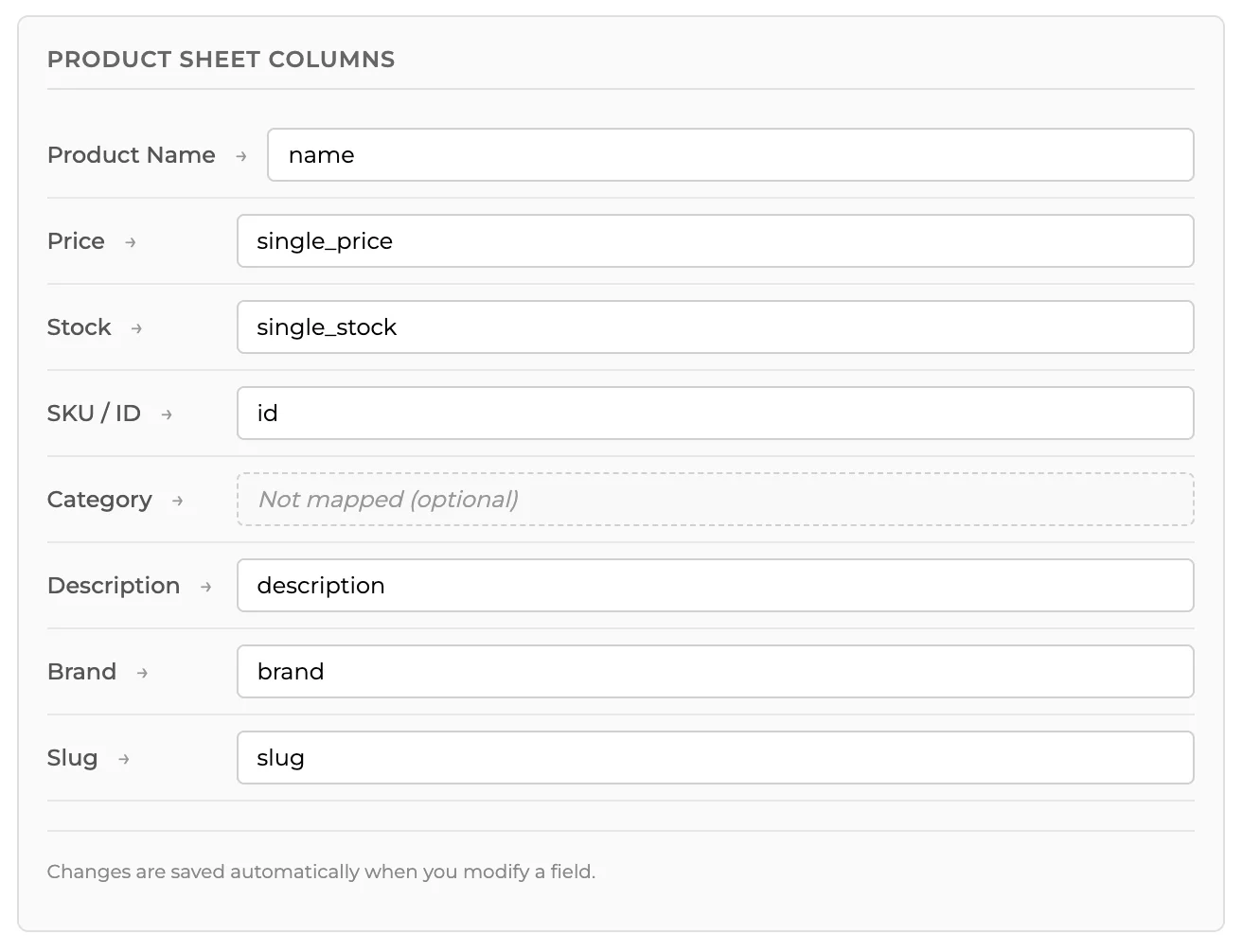
- Product NameThe main product title — this is the primary field the AI searches when customers ask about products.
- PriceProduct price in your currency. The AI includes this when customers ask about cost or pricing.
- StockAvailability status such as "In Stock", "Low Stock", "Out of Stock", or quantity numbers.
- SKU / IDUnique product identifier. Helpful when customers reference specific order numbers or product codes.
- CategoryProduct category or type (optional). Helps the AI find products when customers ask about categories.
- DescriptionDetailed product information. The AI uses this to answer questions about features, materials, and uses.
- BrandBrand or manufacturer name. Searchable when customers ask about specific brands.
- Slug / URLDirect link to product page. The AI includes clickable purchase links in responses.
Tips for Best Results
- Clear Product NamesUse descriptive names like "Colombian Supremo Coffee - 1kg Bag" instead of "Coffee #3" or internal codes.
- Keep Stock UpdatedUpdate your spreadsheet regularly. Outdated stock information leads to frustrated customers and lost sales.
- Full URLsInclude complete URLs with https:// so links are clickable. Example: https://yourstore.com/product-name
- Good DescriptionsWrite detailed product descriptions. The AI uses these to answer customer questions about features, materials, and specifications.
Troubleshooting
- AI isn't finding productsEnsure your Product Name column is mapped correctly in sheet settings — this is the primary field the AI searches. Check that product names are clear and descriptive.
- Wrong products being returnedMake product names more specific by adding size, color, or variant information. For example, "Blue Widget - Large" instead of just "Widget".
- Missing info in responsesCheck that all columns are properly mapped in your sheet settings. Only mapped columns will be included in AI responses. Unmapped data is ignored.
- Data seems outdatedClick the refresh button in Sheet Settings to pull the latest data from your spreadsheet. For persistent issues, try removing and re-adding the sheet connection.