Hidden Features and Power User Tips
Unlock the full potential of Eskra with these lesser-known but incredibly powerful features
Updated January 2, 2026
Introduction
While Eskra is designed to be intuitive and easy to use, there are several powerful features that many users don't discover right away. These hidden gems can dramatically improve your workflow and help you handle emails even faster.
In this guide, we'll reveal four advanced features that can transform how you use Eskra: the Auto toggle for instant replies, the Unanswered filter for focused inbox management, automatic subject line generation, and voice-to-text note dictation.
Auto Toggle - Instant AI Replies
Located next to the AI generate email button, the Auto toggle is a small but mighty feature that can save you tremendous amounts of time when processing multiple emails.
This is the Auto toggle - flip it on to enable instant AI reply generation as soon as you open an email.
What It Does
When you enable the Auto toggle, Eskra will automatically generate an email reply the instant you open an email - no need to click the generate button. The AI immediately analyzes the incoming email and creates a response based on your current settings and notes.
How to Use It Effectively
For best results with Auto mode, make sure your AI notes are well-configured with specific instructions about how you want emails handled. Since the AI generates responses immediately without waiting for you to add context, having detailed notes ensures you get accurate, relevant replies every time.
Pro Tip: Before enabling Auto mode, spend time crafting comprehensive AI notes that cover common scenarios, preferred tone, and any specific information you want included in responses. This upfront work pays off massively when processing dozens of emails.
Best Use Cases
Auto toggle works brilliantly for:
- High-volume support queues - When you need to process many similar customer inquiries quickly
- Standard responses - For emails that typically require similar replies (order confirmations, appointment scheduling, etc.)
- Batch processing - When you're clearing through your inbox and want to move through emails rapidly
Important: Always review auto-generated responses before sending, especially for complex or sensitive emails. The Auto toggle is for speed, but you maintain final control over what gets sent.
Unanswered Email Filter
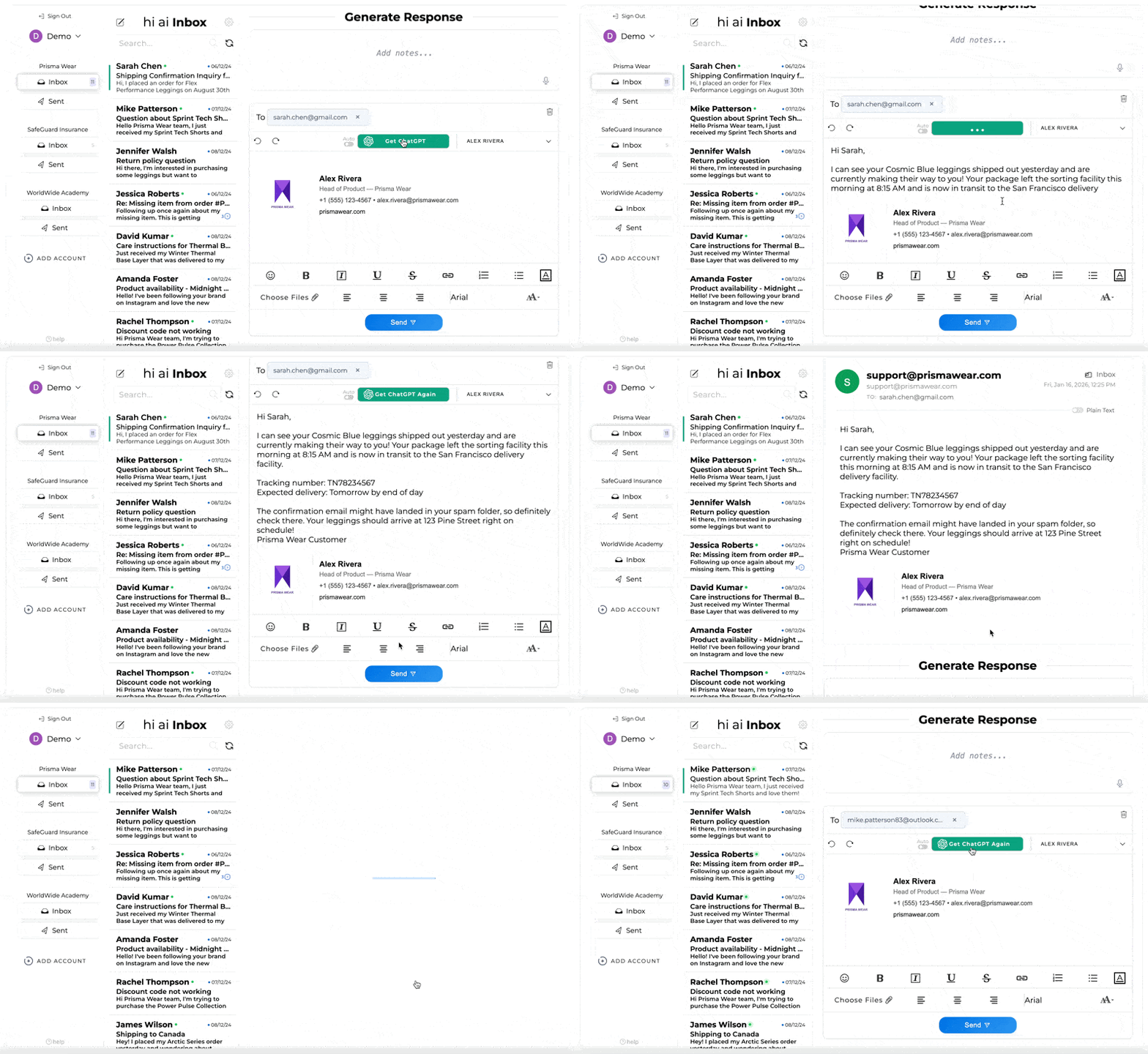
One of the most powerful productivity features in Eskra is the ability to filter your inbox to show only unanswered emails. This creates a focused, task-oriented workflow that helps you achieve inbox zero faster.
How to Enable It
- Navigate to Settings → Preferences
- Find the Sort By dropdown menu
- Change the setting from the default to Unanswered
How It Works
- Only shows unanswered emails - Your inbox displays only emails you haven't replied to yet, eliminating distractions
- Auto-removal after sending - When you send a reply using Eskra, that email automatically disappears from the list and moves to the next unanswered email
- Seamless navigation - The system automatically advances to the next email, keeping you in a smooth workflow
- Manual flagging - You can mark emails as "answered" even if you don't send a reply, perfect for emails that don't need responses or where you're not the last person in the thread
This feature is perfect for customer service teams or anyone who needs to systematically work through a large number of emails without getting distracted by already-handled messages.
Manual Answer Flagging
Sometimes you need to mark an email as answered without actually sending a reply - perhaps the customer was just providing information, or another team member already responded. In Unanswered mode, you can manually flag emails as answered to remove them from your queue without sending a response.
Automatic Subject Line Generation
When composing a new email (not a reply), Eskra has a hidden feature that can generate professional subject lines automatically. This is particularly useful when you're sending proactive emails and want to ensure your subject line is clear and compelling.
Click this AI generate button when composing a new email to automatically create both the email body and subject line.
How to Use It
- Start composing a new email to send to someone
- Leave the subject line field completely blank - this is the key step
- Click the AI generate button to create your email body
The AI will automatically generate both the email body AND a relevant subject line based on the content. If you've already typed something in the subject line, Eskra will respect that and only generate the email body.
Why This Matters
Subject lines significantly impact email open rates and recipient engagement. By letting the AI analyze your email content and create an appropriate subject line, you ensure your subject accurately reflects the message and grabs attention. The AI considers the tone, urgency, and main topic when crafting subject lines.
Voice-to-Text Notes Transcription
Instead of typing out your AI notes, you can use voice dictation to quickly communicate what you want the AI to include in the email. This is one of the fastest ways to add context and instructions for email generation.
Click this microphone icon in the AI notes field to start voice dictation - just speak naturally and your words will be transcribed.
How to Use It
- Look for the microphone icon in the AI notes field
- Click the microphone and allow browser access to your microphone when prompted
- Speak naturally about what you want the email to include - the AI will transcribe your speech in real-time
Best Practices
Speak clearly and at a normal pace. You can dictate things like "mention our 30-day return policy" or "keep the tone friendly and apologetic" or "reference order number 12345 and offer a 10% discount." The transcription is remarkably accurate and saves significant time compared to typing.
Voice notes are especially valuable when you're multitasking, have your hands full, or simply prefer speaking over typing. It's also great for complex instructions that would take time to type out.
Example Voice Commands
- "Make this friendly and apologetic, mention our 30-day return policy, and offer free shipping on their next order"
- "Keep it professional, reference their contract dated March 15th, and schedule a follow-up call for next Tuesday"
- "Casual tone, ask about their experience with the product, and include a link to our satisfaction survey"
Pro Tips for Using Hidden Features
Here are some advanced tips to get the most out of these hidden features:
- Combine features - Use Unanswered filter with Auto toggle for maximum efficiency when processing high volumes of similar emails
- Create templates in notes - Save frequently-used voice instructions as written notes so you can switch between voice and typing seamlessly
- Test Auto mode first - Before using Auto toggle in production, test it with a few emails to ensure your AI notes produce the desired results
- Use subject generation for consistency - Let the AI generate subject lines to maintain professional, consistent formatting across all your outbound emails