Understanding Customer and Product Sheets
Two ways to supercharge your AI responses
Updated December 2025
Two types of sheets
Eskra supports two types of spreadsheet connections, each designed for a different purpose. Understanding when to use each will help you get the most out of your AI assistant.
Customer sheets
A Customer sheet contains information about your customers or users. This could include names, email addresses, order numbers, shipping addresses, purchase dates, and any other customer data you track.
How it works
- We look for an email column and order_number column in your sheet by default.
- When you load your inbox, Eskra checks each email against your customer data.
- If the sender's email matches a row, or an order number is mentioned in the subject or body, that email is highlighted in your inbox.
- All data from that matching row is automatically fed to the AI, so it can craft a personalized, accurate response.
Example column headers:
name, email, address, order_number, date, status, notes
Product sheets
A Product sheet contains your inventory or product catalog. This includes product names, prices, stock levels, SKUs, descriptions, and more.
How it works
- Product sheets work like a knowledge base for your AI.
- When a customer asks about a product (e.g., "Is the Blue Widget in stock?"), the AI automatically searches your connected product sheet.
- The AI finds relevant products and uses that information to craft an accurate response with real pricing and availability.
We search for these fields by default:
- Product Name
- Price
- Stock
- SKU / ID
- Category
- Description
- Brand
- Slug
Managing your sheets
Once connected, you can manage your sheets from the Sheet Accounts section in Settings.
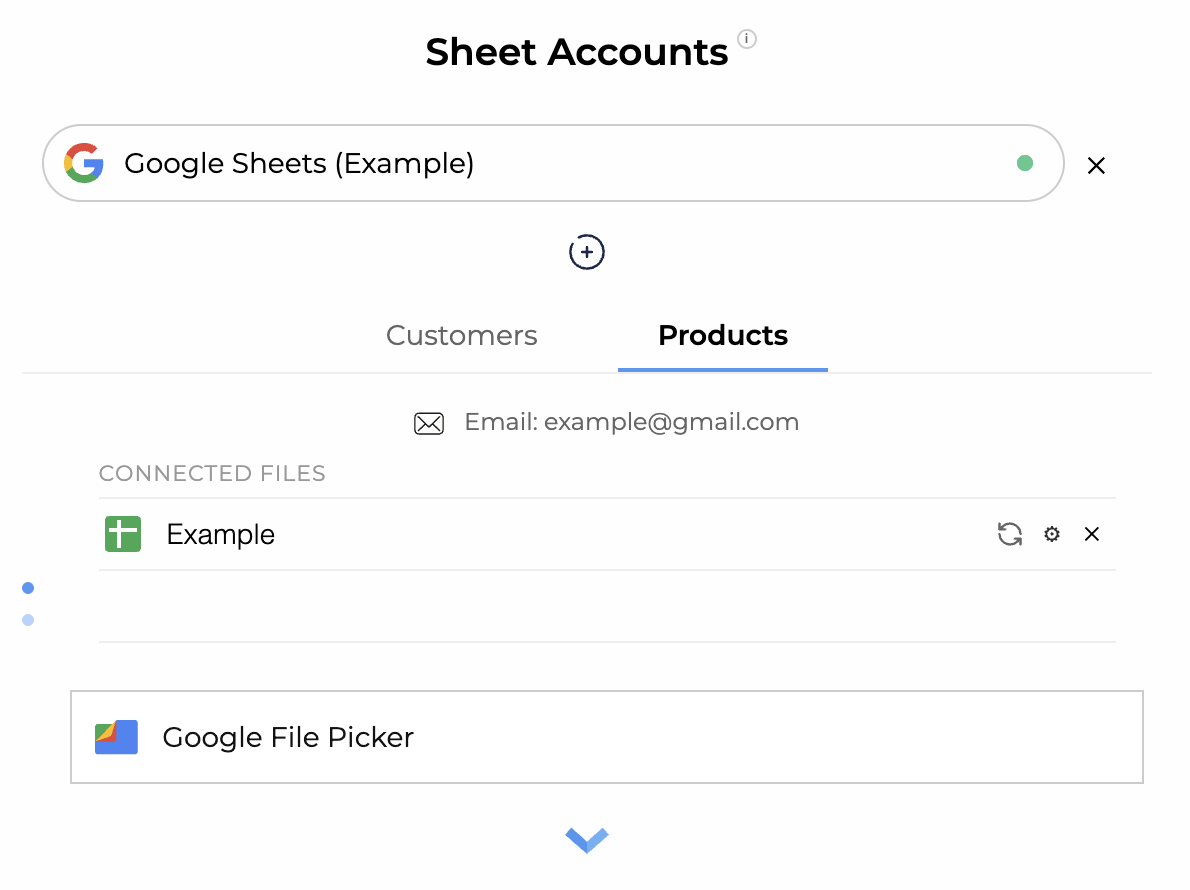
- Click the settings icon on any connected sheet to adjust which columns are used for matching.
- If you update your spreadsheet (add rows, change data), click the refresh icon in Eskra to sync the latest data.
- You can connect multiple sheets of each type if needed.
Important: If you make changes to your spreadsheet (add rows, update data), you need to refresh it in Eskra by clicking the refresh icon, or disconnect and reconnect the sheet.
Tips for best results
- Use clear, consistent column headers in your spreadsheets
- Keep your data up to date and refresh after making changes
- For customer sheets, make sure email addresses match exactly how customers send emails
- For product sheets, include as much detail as possible—the AI uses this to answer questions